Monthly budgets
A budget is a dollar amount a client's change requests are measured against each month. Nothing about payment changes – tasks are still priced and paid one at a time – but you and your client both see how much of the month is used, and a task that arrives after the budget is spent says so.
Setting a Budget
Budgets are set per project, so one client can have one and another can carry on paying per task:
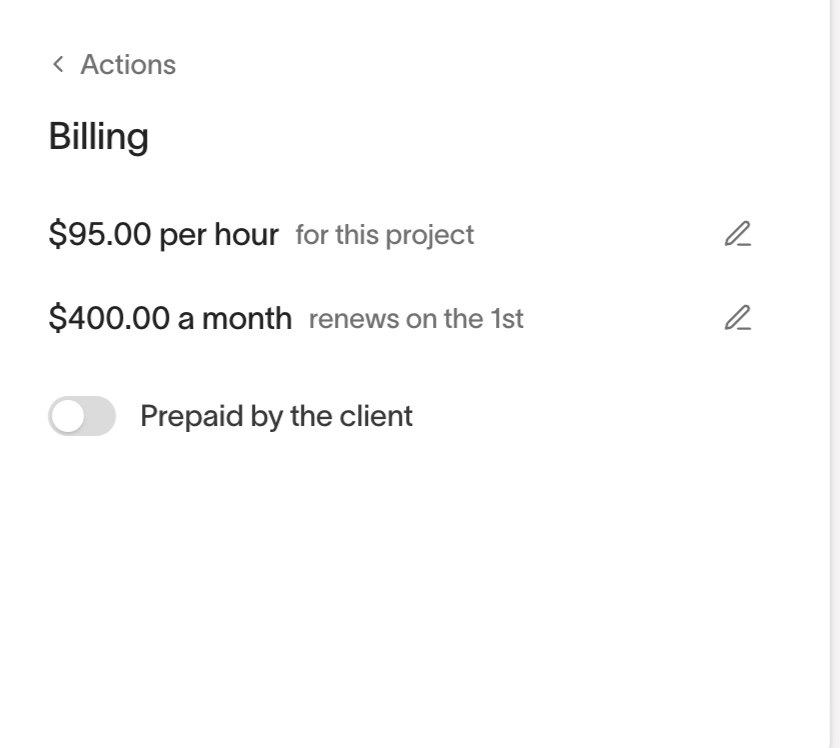
- Open the project and go to Actions → Billing
- Click "Set a monthly budget" under your hourly rate
- Enter the amount and pick the day of the month it renews on
- Click Save
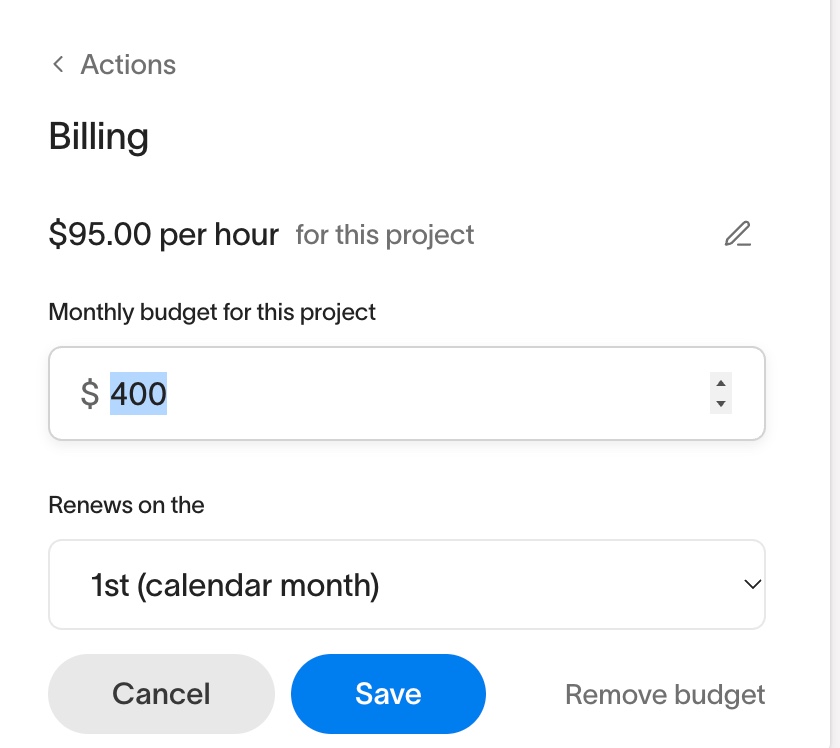
The renewal day defaults to the 1st, which makes the budget a calendar month. A client whose agreement started on the 15th can renew on the 15th instead, and the month then runs from the 15th to the 14th. The pencil beside the figure opens the same editor later, and "Remove budget" inside it takes the budget off again.
What Counts Against It
Each task counts in the month it was created, at its cost:
- A Fixed cost task counts as soon as you give it a price
- An Hourly task counts once you apply its tracked time; time tracked but not yet applied is included in the figure too, so the bar never jumps when you apply it
- A No cost task counts nothing, and a cancelled task is left out
Tasks from earlier months are not in the figure. When the renewal day comes round the bar starts again from zero.
The Bar
The budget sits above the task list on the project's Tasks tab, in the widget on your client's Squarespace site, and in the client portal. It is one line and one bar: the amount used so far, the budget, and when it resets.
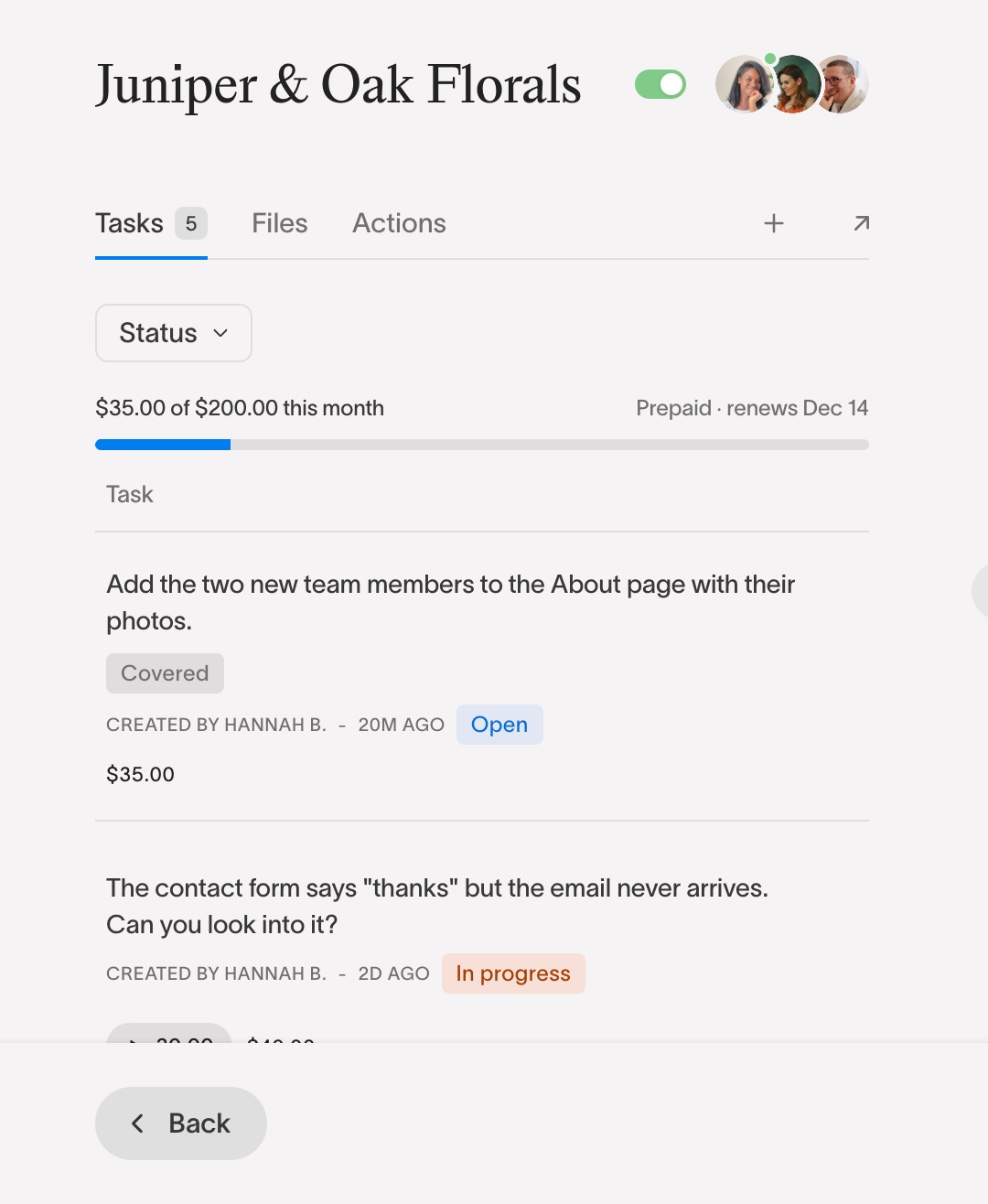
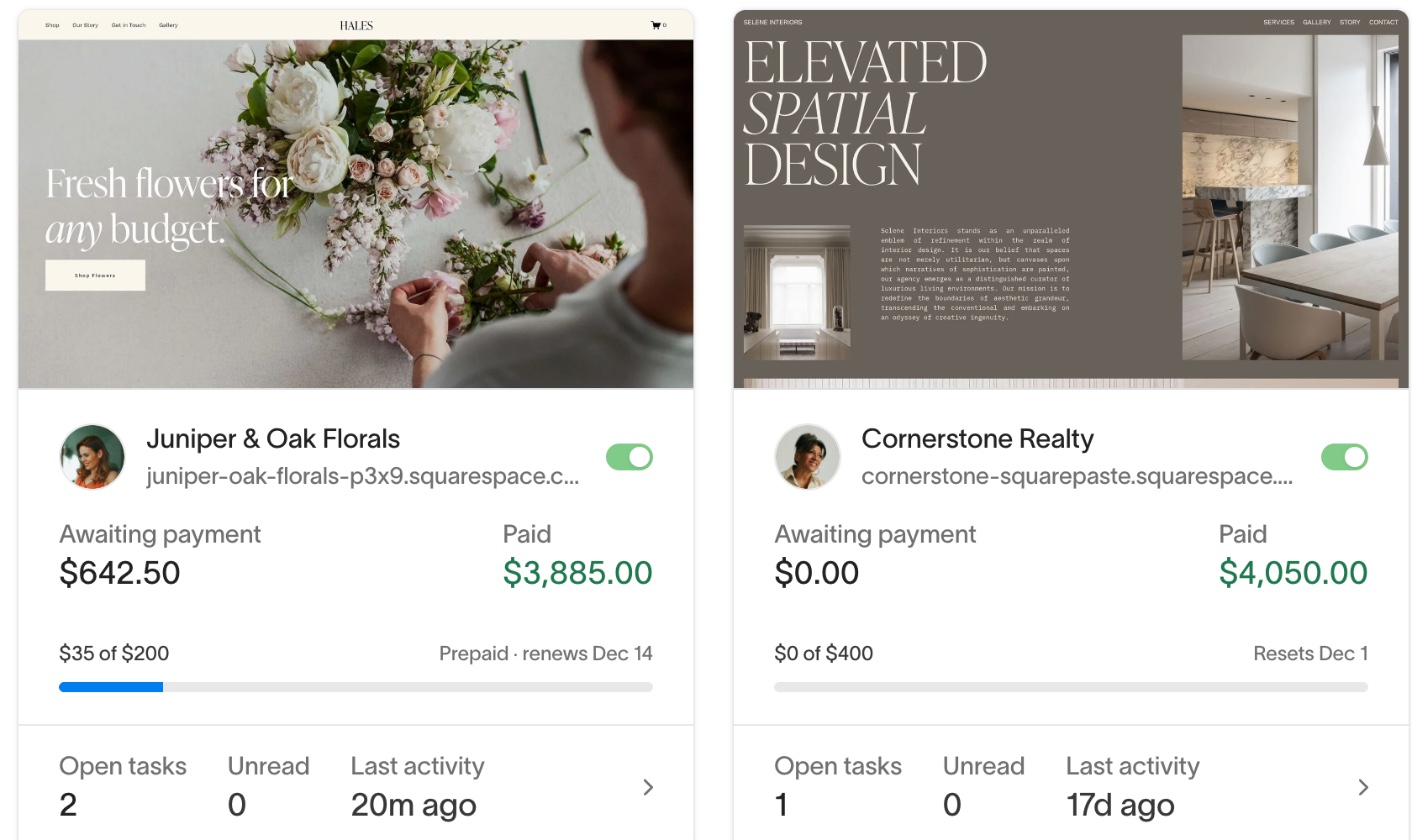
Hover over the bar and it separates into three parts, with a key in place of the figure: Paid, Unpaid and Leftover. Unpaid is priced work the client has not paid for yet, plus any hourly time that has not been priced. The same bar, in a smaller form, sits on each project card on your dashboard and the Projects page, so you can see at a glance which client is close to their budget.

Over Budget
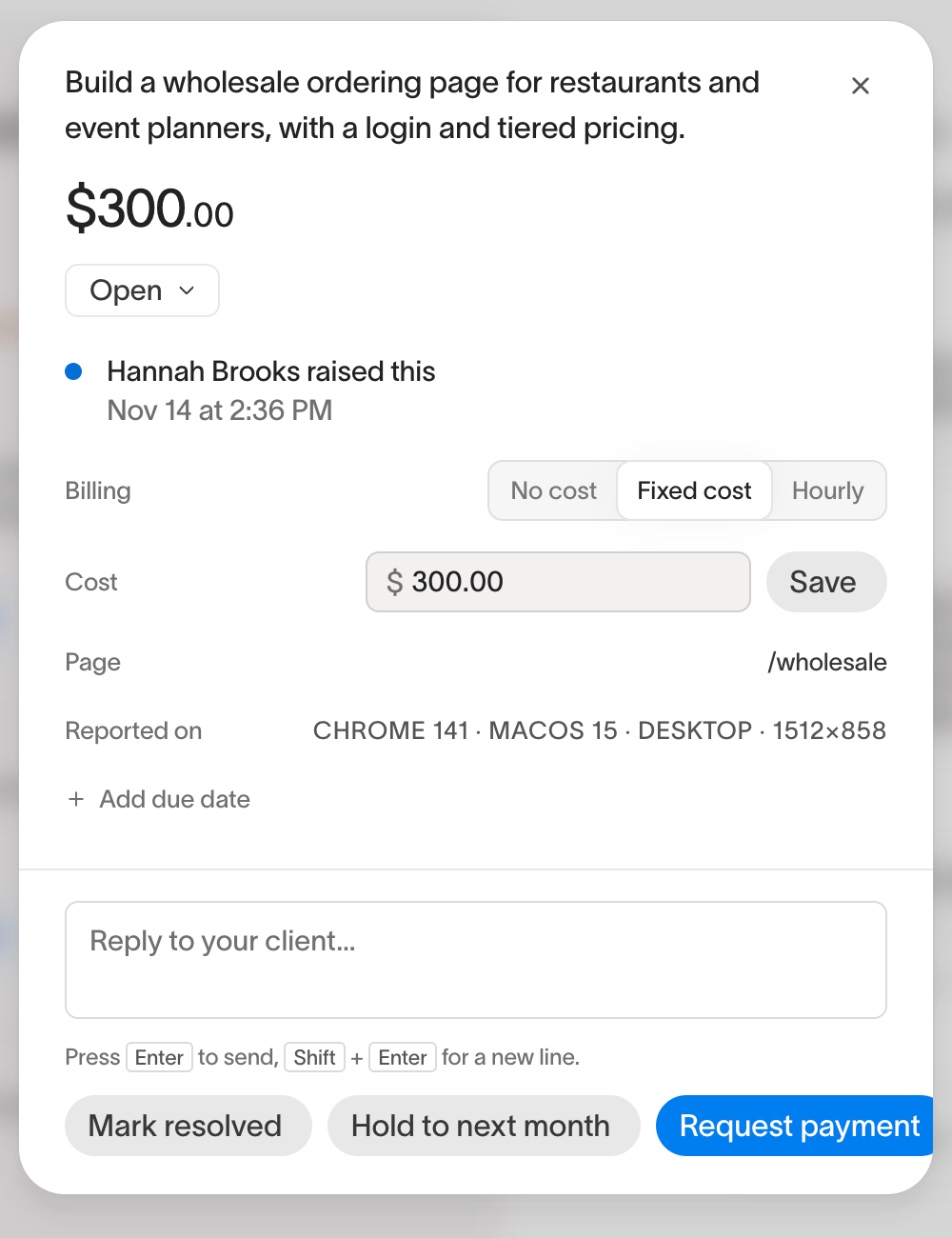
Nothing stops a client raising a task once the month's budget is spent. The request is the thing you want captured, and a client who cannot raise it in the widget sends it by text instead. What changes is how it arrives: the bar turns warm, and the task carries an "Over budget" label so you know it needs a decision before any work starts.
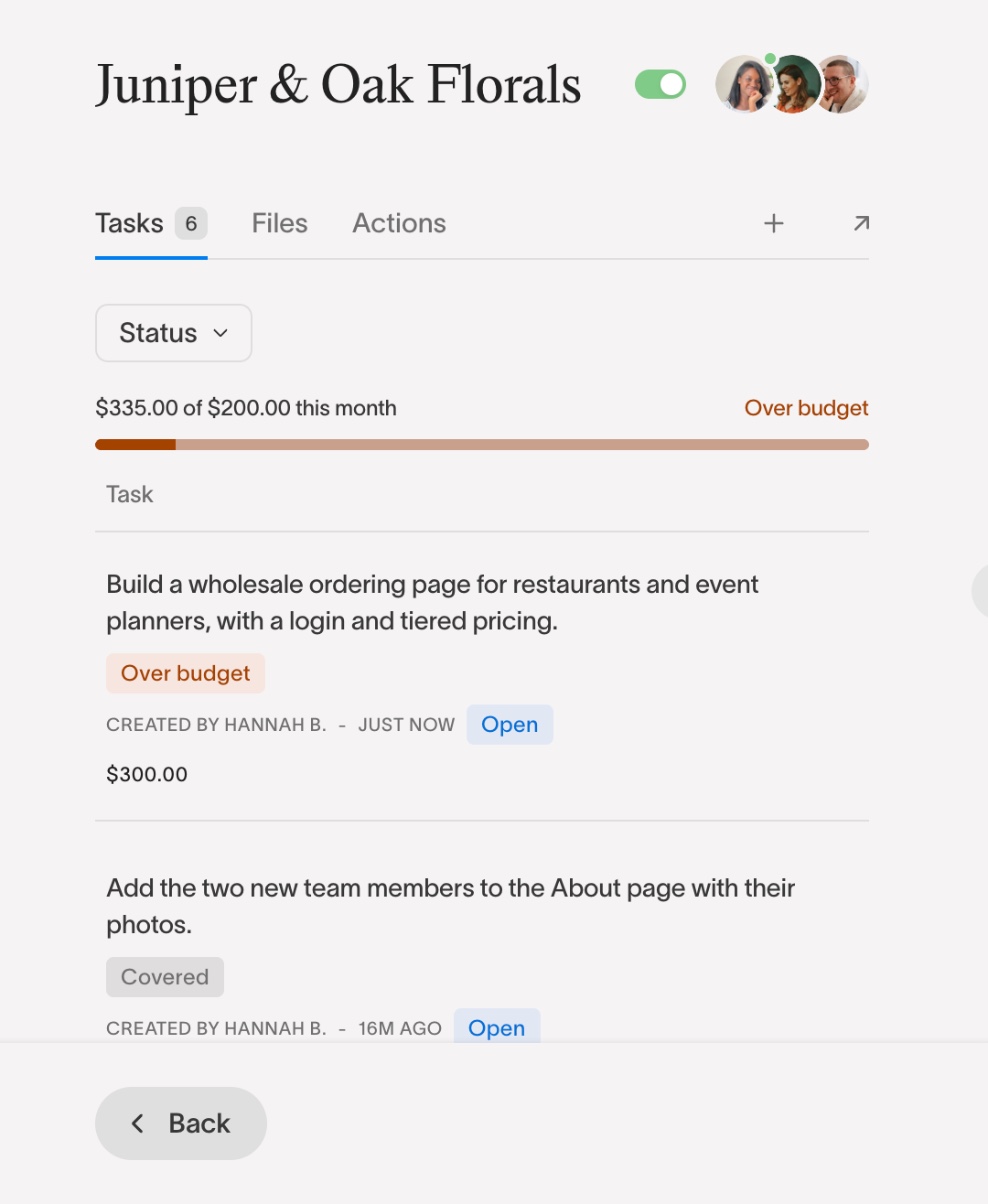
You have two choices on an over-budget task, both on its card:
- Price it anyway. Give it a Fixed or Hourly cost and request payment as you would for any task. The client accepts by paying.
- Hold to next month. One click sets the task's due date to the day the budget renews. The task stays open and the client can still read and reply to it; it just waits for the next month.
Prepaid by the Client
Some clients would rather pay the budget up front each month than pay task by task. The switch under the budget in Billing turns it into exactly that: a monthly plan the client starts on Stripe, billed to their card and paid to your own Stripe account.
- Switch on "Prepaid by the client"
- Enter your client's email and click "Send the offer"
- They open the link in the email, review the plan and start it with their card
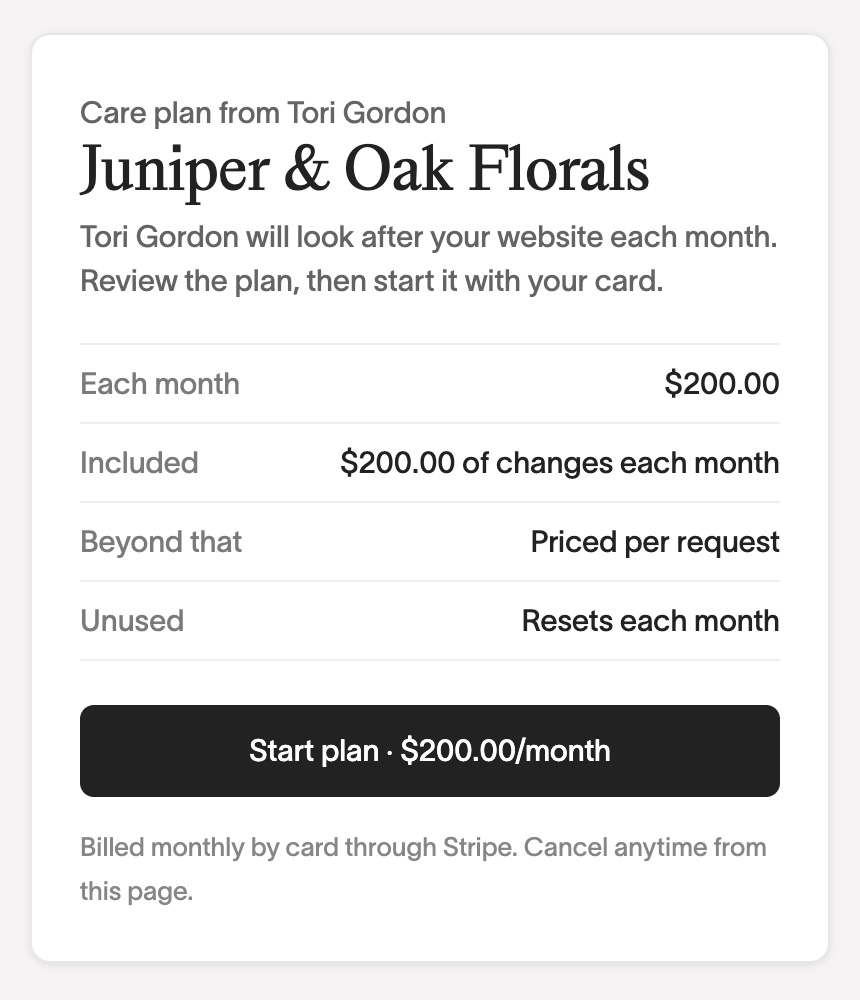
Until they start it, the budget works as before. Once it is running, three things change:
- Tasks that fit in what is left of the month show "Covered" instead of a Pay button. They are already paid for, so there is nothing to request.
- A task that takes the month past the budget is priced per task, exactly as it is without a plan, or held to next month.
- The month follows Stripe's billing date rather than the renewal day you chose, and the bar says "Prepaid" with the date it renews.
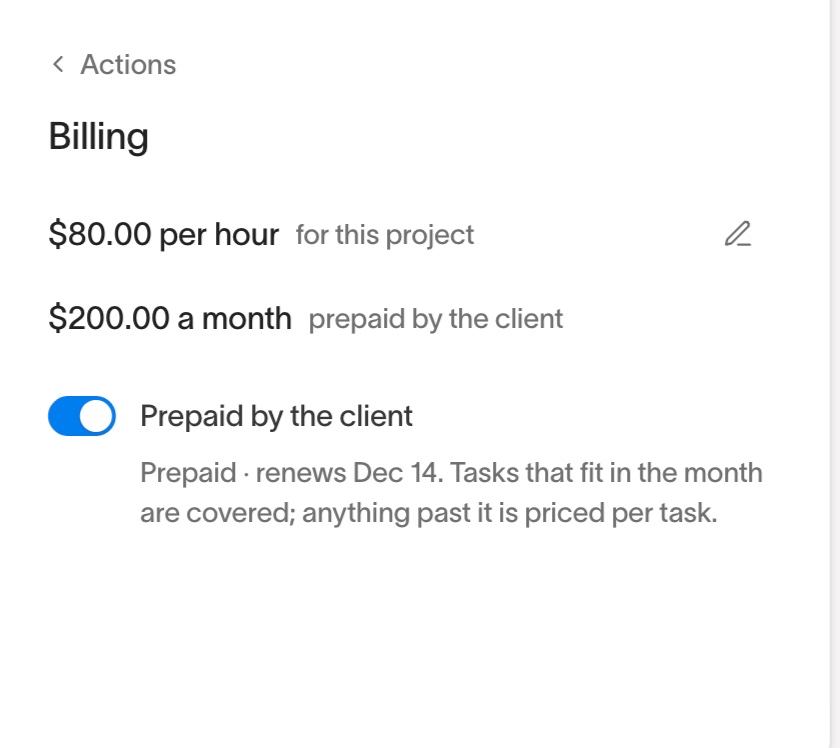
While the plan is running the amount cannot be edited, because it lives in Stripe. To change it, end the plan and offer a new one.
Ending a Prepaid Plan
Either side can end it. Your client cancels from the same page they used to start it; the plan runs to the end of the month they have paid for, nothing is charged again, and the project goes back to paying per task. You end it by switching "Prepaid by the client" off in Billing, which stops the subscription immediately. If a monthly payment fails, Stripe retries it for about a week and emails your client; the bar says so, and tasks stay covered while it retries.
Tip: Set the budget before the client's first request of the month, not after. The bar only counts tasks created from then on, so a budget added halfway through a busy month starts with a figure that leaves out the work already done.