
Client payments
A task can carry a price, and your client can pay it from the Squarepaste widget or the client portal. Payments run through Stripe straight into your own account – Squarepaste takes 2% on Link and Connect, and 1% on Atlas.
Setting Up Payouts
Before a client can pay you, connect a payout account:
- Log in to your Squarepaste dashboard
- Go to Settings → Payout settings
- Click "Set up payouts" and complete Stripe's onboarding
- Come back when Stripe has verified you – the Payout account row then reads "Payouts Connected". If you stopped part-way, click "Finish setup" to carry on
Until that is done, a client who tries to pay is told the designer has not set up payments yet. The same page has a "Business name" field, which is the name your client sees on Stripe's payment page; leave it blank and Stripe uses whatever you gave it during setup.
Pricing a Task
A task is priced in dollars from its detail panel: set Billing to "Fixed cost", type the amount in "Cost" and click "Save". You can also set it as you create a task – the "New task" form asks how the task is billed and takes a cost for fixed work.
The cost is always yours to set. A client raising a request through the widget or the portal can describe the work, but never puts a number on it.
Fixed and Hourly Billing
Each task is billed one of three ways:
- No cost: nothing to pay
- Fixed cost: agree a figure and type it into the Cost field
- Hourly: run the task timer while you work, then click "Apply" to turn the logged time into the task's cost before you request payment
You can change how a task is billed until you request payment for it.
Your hourly rate comes from the project if it has one of its own, and otherwise from the "Hourly rate" on your account under Settings → Payout settings. Turning time into money is always an explicit click, so a running timer can never quietly change what a client owes.
Requesting Payment
Pricing a task is not the same as asking to be paid for it. Until you request payment, your client sees the amount as an estimate rather than something outstanding. To request it:
- Open the task and click "Request payment"
- Under "Send to", tick the members who should get the email, and check the preview of the email below
- Click "Send"
The task is then marked Unpaid and your client gets a Pay button. The button in the panel becomes "Resend payment request" if you need to send the email again.
How Your Client Pays
Your client can pay from either side of Squarepaste:
- In the widget: the Tasks tab shows a "Pay" button with the amount on any priced task you have requested payment for
- In the client portal: the same button sits on the task
Either one opens a secure payment form right there, over the widget or the portal, so your client never leaves the page. They can pay by card, bank account or Link, and with other methods Stripe offers where they are available. The form is Stripe's own, so card details go straight to Stripe and never pass through Squarepaste. Tasks are paid one at a time, and each one shows whether it is paid or unpaid.
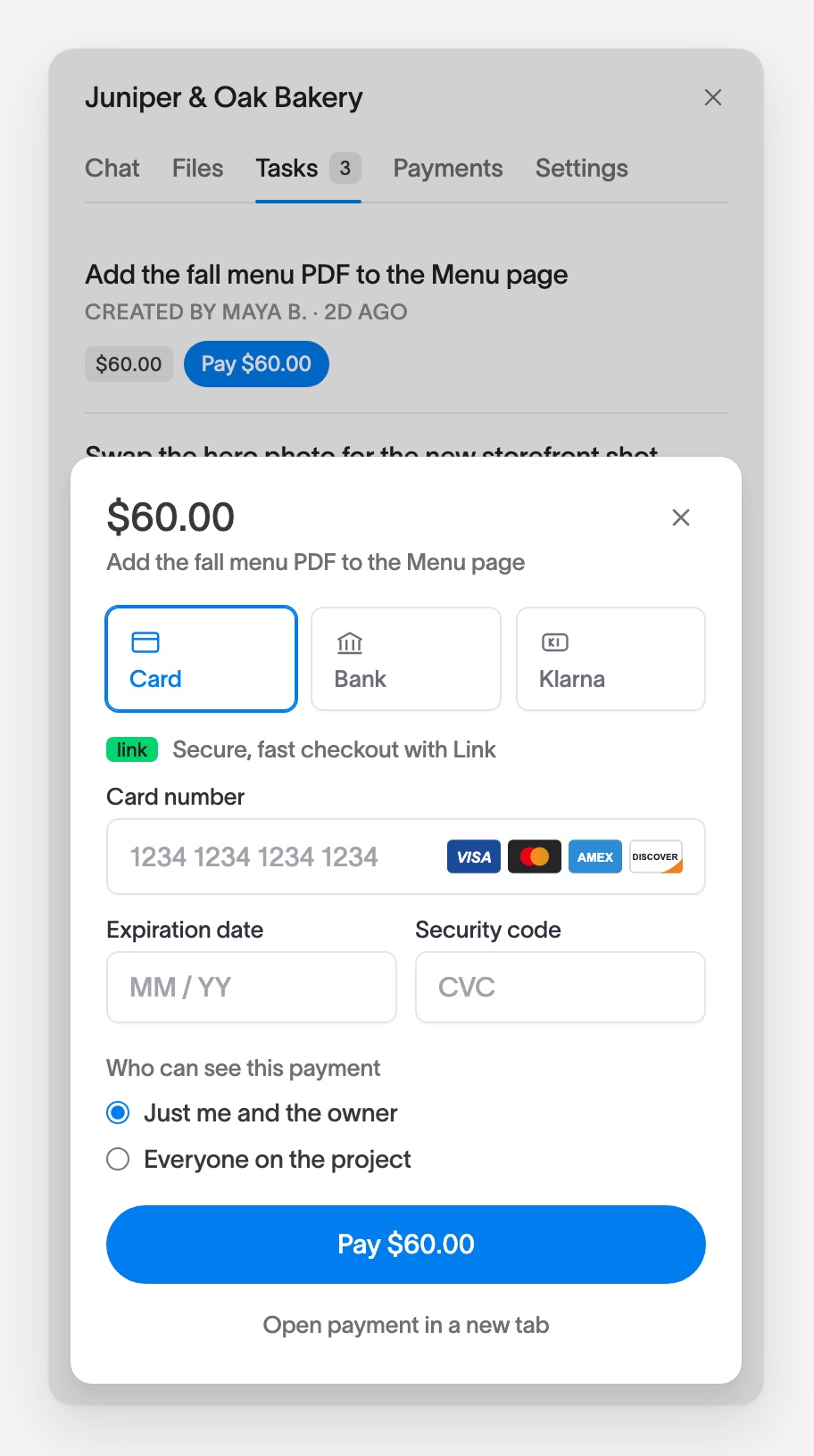
Under the form, your client chooses who can see the payment: "Just me and the owner" (the default) or "Everyone on the project". You always see every payment. They can change their choice later from the Payments tab.
If the form can't load, for example because a browser extension blocks it, your client can use "Open payment in a new tab" to finish on Stripe's hosted payment page instead.
After the Payment
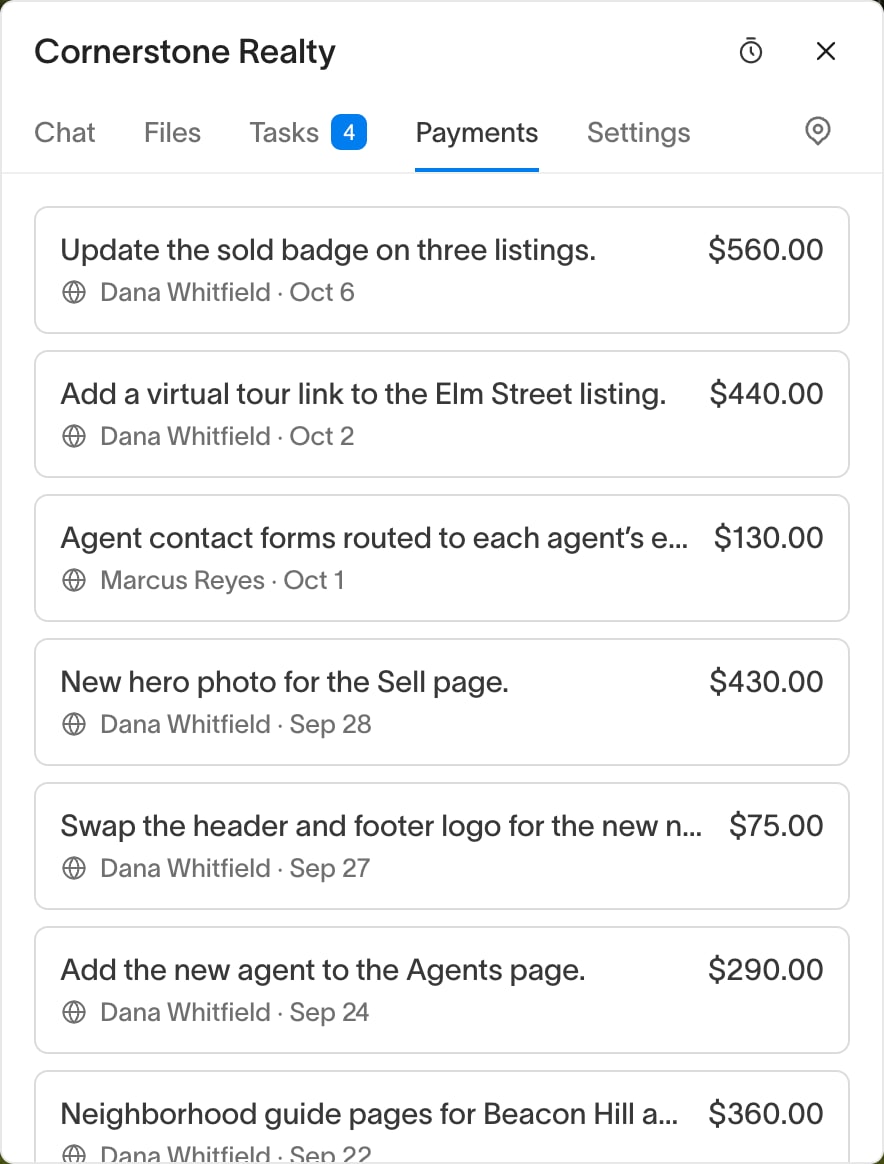
Squarepaste checks the payment with Stripe and marks the task paid as soon as Stripe confirms it, so you and your client both see it as paid straight away. Each payment is also logged on the Payments tab in the widget and the client portal, with the amount, the task and who paid. The money goes to the Stripe account you connected, and payouts to your bank follow Stripe's own schedule. Payments in the sidebar has Hourly and Fixed pages, each with Paid and Awaiting payment tabs, so you can see what has come in and what is still owed. Squarepaste takes 2% of what your client pays you on Link and Connect, and 1% on Atlas. Stripe's own processing fee comes out of the payment as well.
Tip: Price the work while the task is still fresh and request payment when you mark it resolved. Your client then has the description, your replies and the amount in one place, which is a great deal easier to say yes to than an invoice that arrives weeks later.

