
Customize your chat widget
Make the Squarepaste widget yours. Pick a widget color for each project, put your own icon on the chat button, and hide the button until it is needed.
Widget color
Each project has its own widget color:
- Open the project in your Squarepaste dashboard and go to the Actions tab
- Click Project – the Edit project panel opens
- Under Widget, pick one of the five colors: Main, Slate, Green, Orange or Purple
- Click "Save changes"
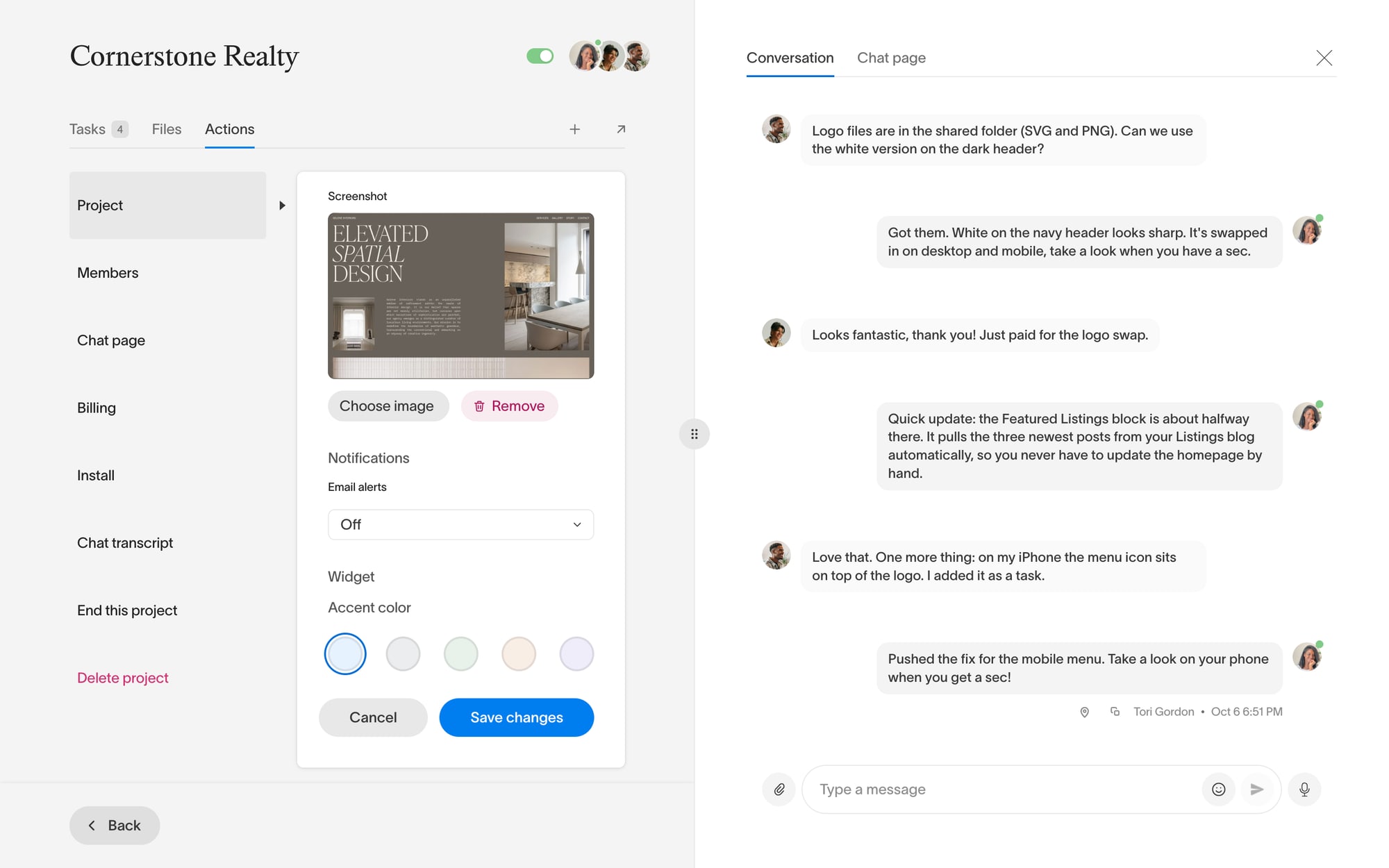
The color is used for links, buttons and highlights inside the chat panel. The panel itself stays white.
Custom widget icon
Upload your own icon to replace the Squarepaste icon on the chat button. The icon is set once for your account and shows on all your projects. Custom widget icon is only available on the Connect and Atlas plans.
- Go to Settings → Profile
- Next to "Widget icon", click "Edit"
- Click "Upload image" and choose your file
- Use a square image
- JPEG, PNG or WebP
- Under 5MB
Stealth mode
Stealth mode hides the chat button until the bottom-right corner is hovered, so it stays out of the way while you work in the editor. Turn it on from the Settings tab of the Squarepaste widget in the Squarespace editor, while you are signed in as the designer.
Tip: Keep your widget design consistent with your Squarespace site's branding for a professional, cohesive look that clients will recognize.

