
Install Squarepaste on Squarespace
Installing Squarepaste on Squarespace is simple. Squarepaste is built specifically for Squarespace sites. Once you've added the site as a project, you paste the Squarepaste Code into the site's Header Code Injection. Follow these steps to get started.
Step 1: Get your Squarepaste Code
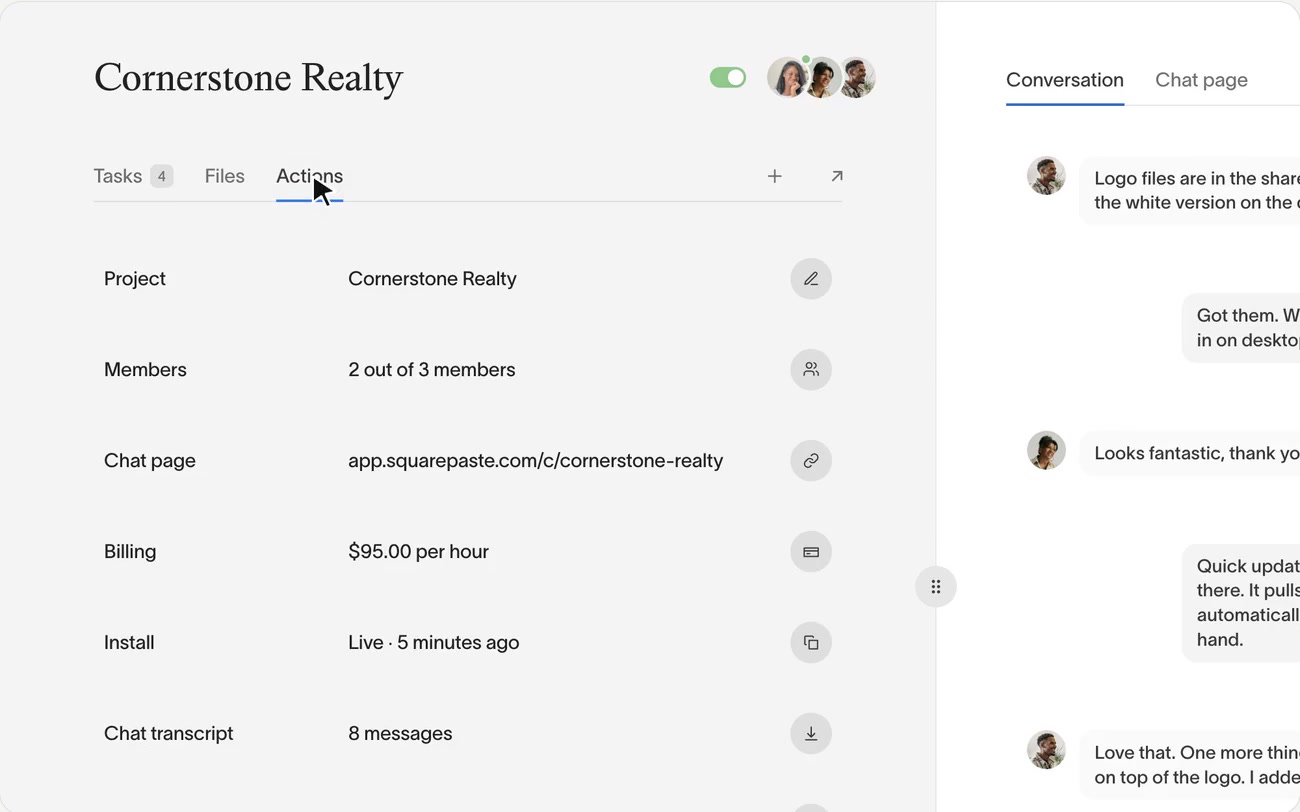
Right after you add a project, the Install step shows your Squarepaste Code. Click it to copy. Later, you can find it on the project's Actions tab under Install, where clicking the code copies it too.
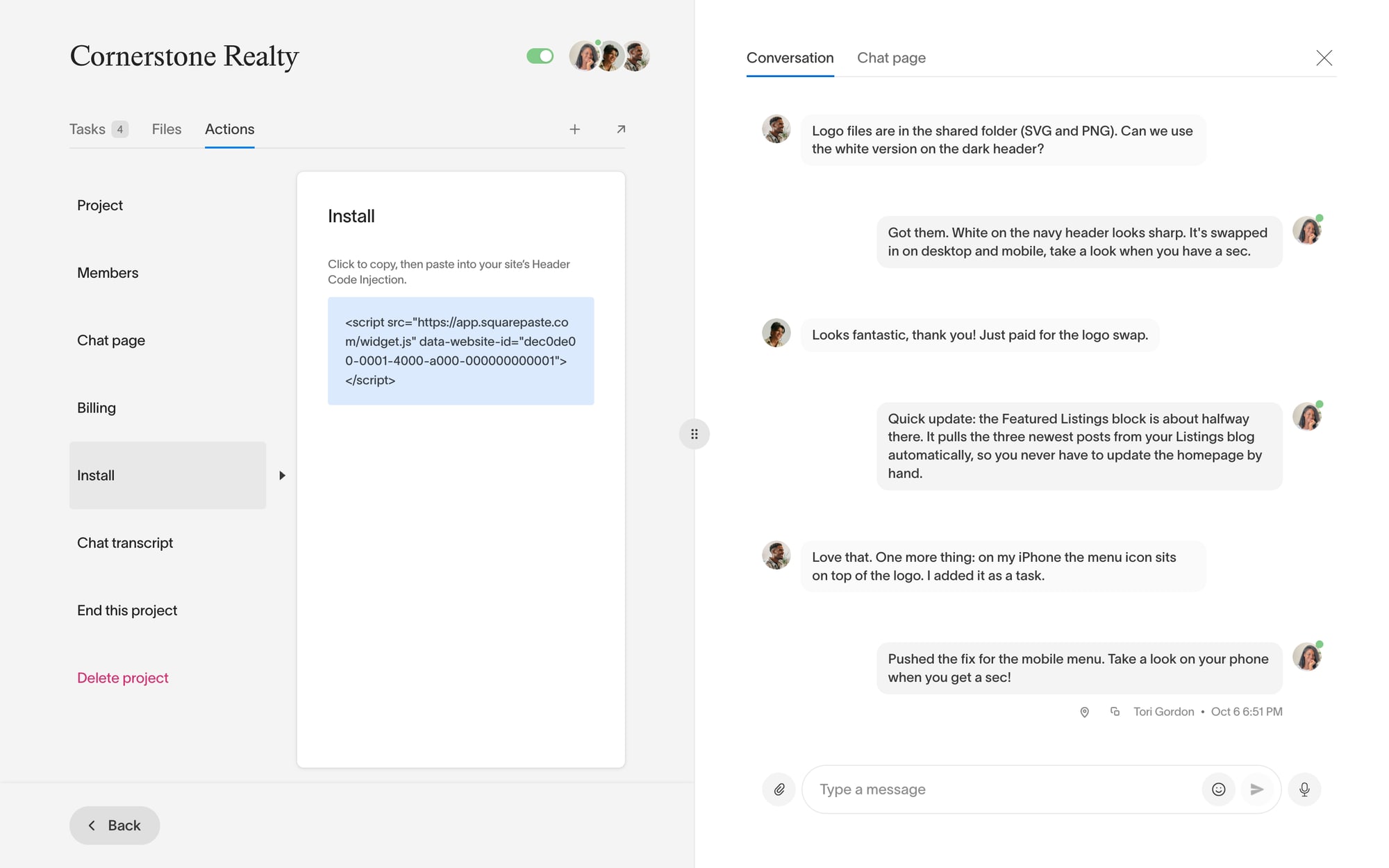
Your Squarepaste Code will look like this:
<script src="https://app.squarepaste.com/widget.js" data-website-id="your-project-id"></script>Step 2: Add the code to your Squarespace site
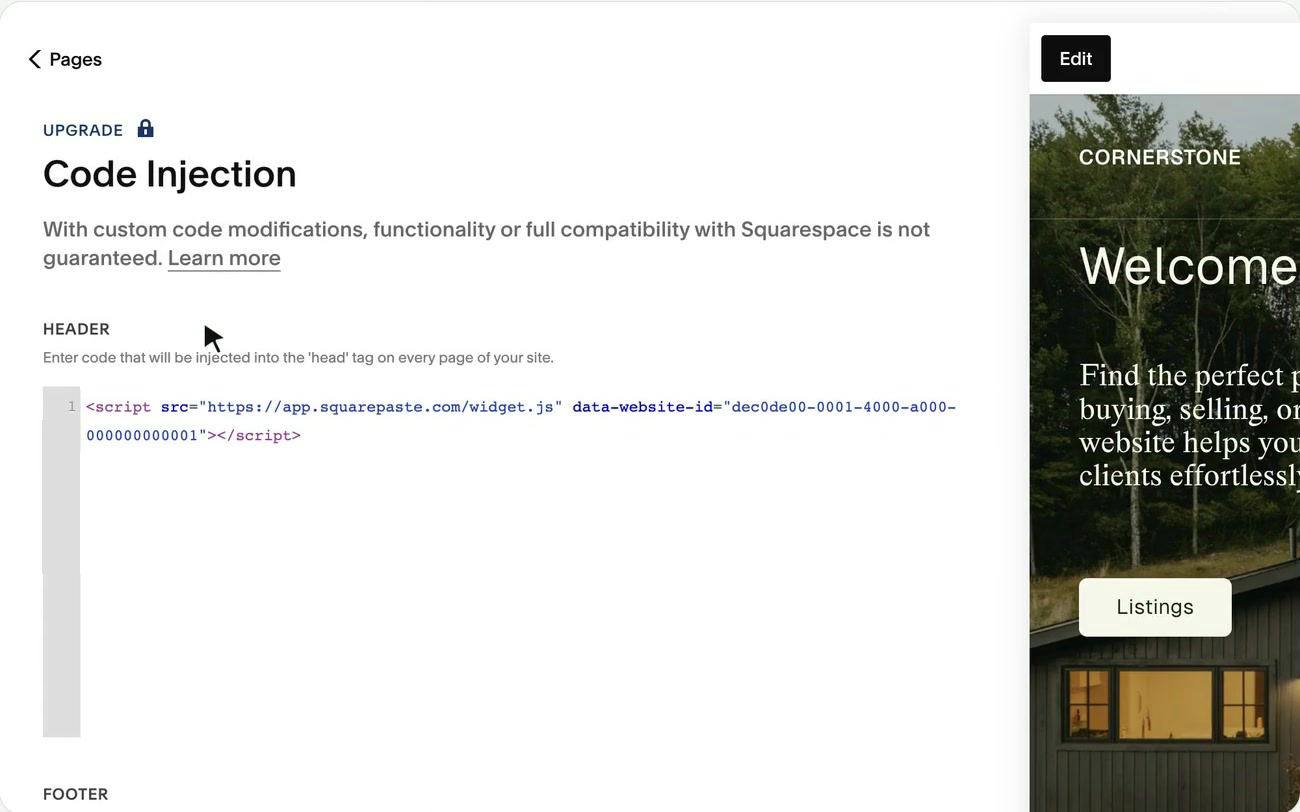
Paste the Squarepaste Code into your Squarespace site using Code Injection:
- In Squarespace, go to Website → Pages → Website Tools → Code Injection, or click "Open Code Injection on your site" in Squarepaste
- Paste the code into the Header box
- Click Save

Step 3: Verify installation
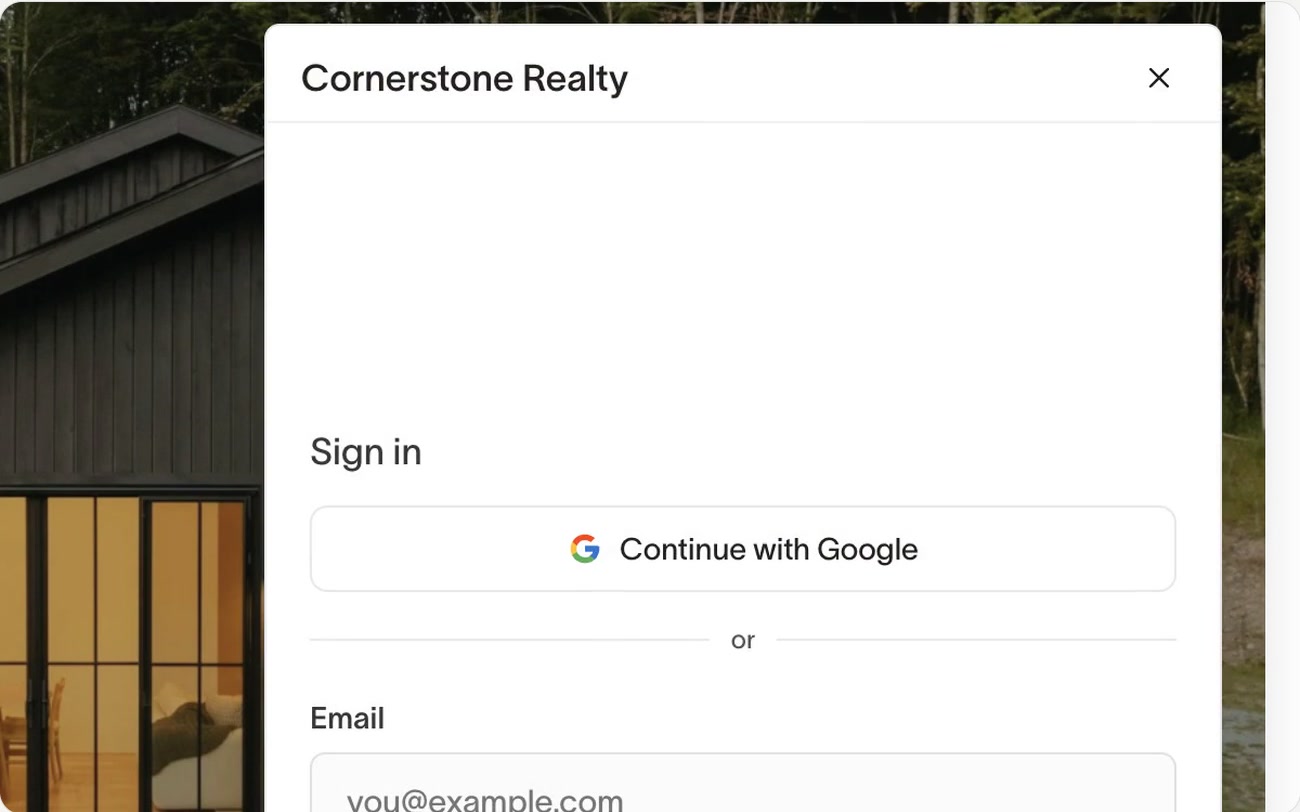
The Squarepaste widget only appears inside the Squarespace editor, on the site's built-in squarespace.com address. It never shows on the live site or a custom domain. Log in to Squarespace and open the site in the editor. You should see the Squarepaste widget in the bottom-right corner. Click it to open the chat.

If you don't see it:
- Make sure you're in the editor on the yoursite.squarespace.com address
- Check that the code in Code Injection matches the one in the project's Actions tab → Install
- Make sure the project hasn't been ended or deleted
- Clear your browser cache and refresh
Squarespace installation guide
For detailed step-by-step instructions on installing Squarepaste on your Squarespace site, see our complete guide:
Tip: The Squarepaste widget is designed to work on your Squarespace site. If you have performance concerns, contact support.

