
Install Squarepaste on Squarespace
Squarepaste is built specifically for Squarespace websites. First you add your site to Squarepaste, either by connecting Squarespace (recommended) or by typing it in. Then you paste the Squarepaste Code into the site's Header Code Injection. Every site needs that second step, and the whole thing takes just a few minutes.
Step 1, option A: Connect with Squarespace (Recommended)
Connecting lets you choose the site from your Squarespace account and brings in its name and domain for you.
- Log in to your Squarepaste dashboard
- Click "Add project"
- Click the "Connect Squarespace Site" button
- You'll be redirected to Squarespace to authorize Squarepaste
- Select the Squarespace site you want to connect
- Grant Squarepaste the necessary permissions
- You'll come back to Squarepaste on the Install step
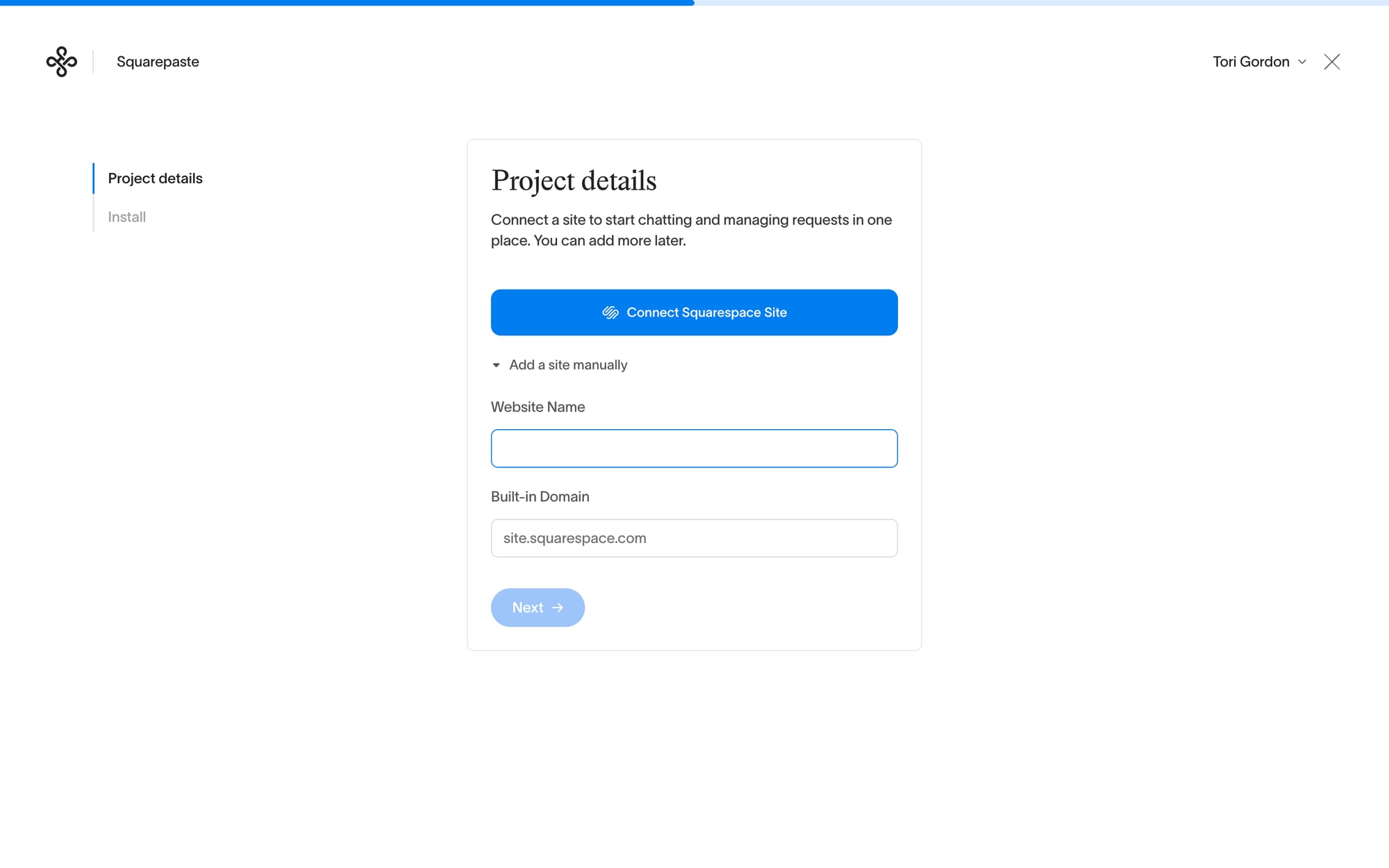
Step 1, option B: Add a site manually
- Log in to your Squarepaste dashboard
- Click "Add project," then "Add a site manually"
- Enter the Website Name and the site's Built-in Domain (e.g., "yoursite.squarespace.com")
- Click "Next" to create the project and go to the Install step
Step 2: Paste the Squarepaste Code into Code Injection
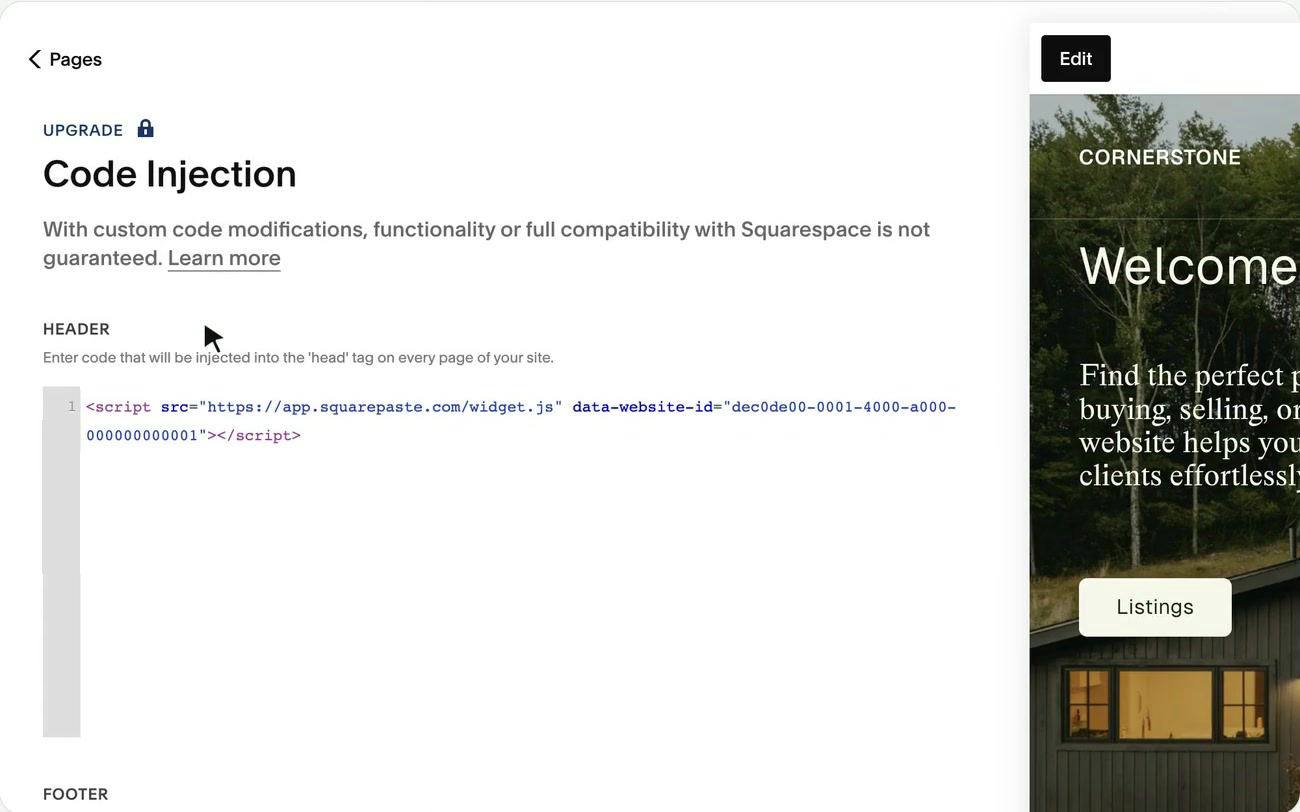
- On the Install step, click the code to copy it. It will look like this:
<script src="https://app.squarepaste.com/widget.js" data-website-id="your-project-id"></script>- In Squarespace, go to Website → Pages → Website Tools → Code Injection. The "Open Code Injection on your site" link on the Install step takes you straight there
- Paste the code into the Header box
- Click Save
- Click "Done" in Squarepaste

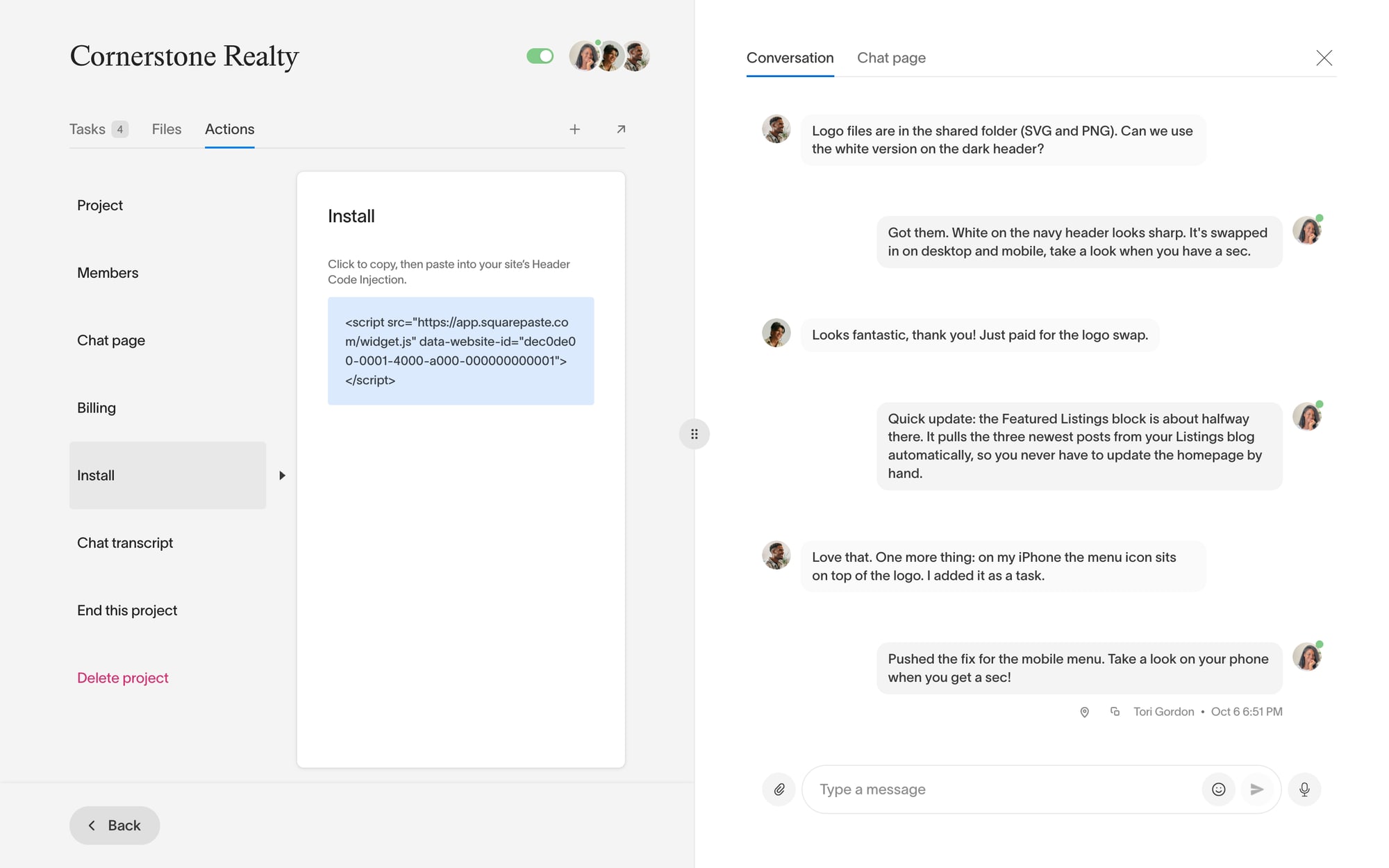
You can find the code again any time on the project's Actions tab, under Install.
Verifying Installation
The Squarepaste widget only appears inside the Squarespace editor, on the site's built-in squarespace.com address. It never shows on the live site or a custom domain. To check it, log in to Squarespace and open the site in the editor. You should see the Squarepaste widget in the bottom-right corner. If you don't see it:
- Wait a few moments for the widget to load
- Make sure you're in the editor on the yoursite.squarespace.com address
- Check that the code in Code Injection matches the one in the project's Actions tab → Install
- Make sure the project hasn't been ended or deleted
- Clear your browser cache and refresh the page
Tip: Connecting lets you pick your site from your Squarespace account and brings in its name and domain for you. Squarespace doesn't let other apps edit a site's Header Code Injection, so the one step left is pasting in your Squarepaste Code. It takes about a minute.

