
Verify your Squarepaste installation
After installing Squarepaste on your Squarespace site, it's important to verify that everything is working correctly. Follow these steps to confirm your installation is successful.
Visual Check
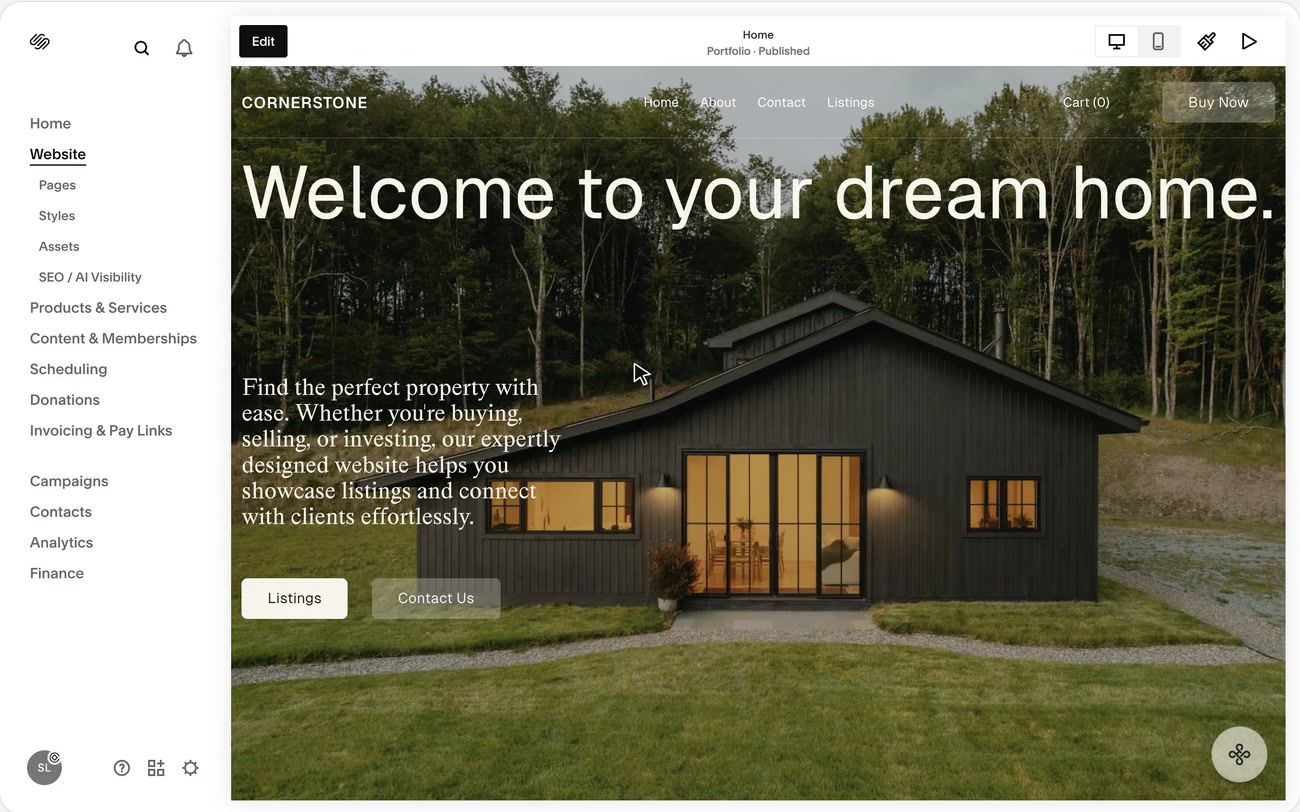
The Squarepaste widget only appears inside the Squarespace editor, on the site's built-in squarespace.com address. It never shows on the live site or a custom domain, for anyone. To check it:
- Log in to Squarespace
- Open the site in the editor on its yoursite.squarespace.com address
- Look for the Squarepaste widget, a round button in the bottom-right corner
- Click on the widget to make sure it opens the chat
Dashboard Verification
Check your Squarepaste dashboard to confirm the project is set up properly:
- Code matches: Open the project's Actions tab → Install and check that the code there is the same one you pasted into Code Injection. Older snippets that point to /app/widget.js need replacing
- Project is active: Make sure the project hasn't been ended or deleted
Test the Chat Functionality
To ensure everything is working, test the chat feature:
- Open the site in the Squarespace editor
- Click on the Squarepaste widget to open the chat
- Send a test message
- Check the project page in your Squarepaste dashboard to see if the message appears in the conversation
- Reply to the message from your dashboard
- Verify the reply appears in the widget
To check your client's side too, open the project's chat page from Actions → Chat page. That is where clients without Squarespace access chat with you.
Troubleshooting
If the widget doesn't appear or isn't working:
- Use the editor: The widget only shows in the Squarespace editor, on the built-in squarespace.com address, not on the live site or a custom domain
- Check Code Injection: Make sure the Squarepaste Code is in the Header box of Squarespace's Code Injection (Website → Pages → Website Tools → Code Injection)
- Check the project: Make sure the project hasn't been ended or deleted
- Clear browser cache: Sometimes cached versions of your site can hide the widget
- Try different browsers: Test in multiple browsers to rule out browser-specific issues
- Wait a few minutes: Sometimes it takes a few minutes for changes to propagate
Tip: If you're still having issues after trying these steps, check out our troubleshooting guide for more detailed help.

