
Best practices for using Squarepaste
Get the most out of Squarepaste with these tips and best practices for using the app effectively.
Best practices for using Squarepaste
Widget Setup
Set up your widget for the best experience:
- Add the Squarepaste Code to the Header section of Code Injection
- Invite your client as a member from the project's Actions tab → Members
- Set the widget color in the project's Actions tab → Project
- Use Stealth mode through the Settings tab in the widget interface to hide the widget
The widget only appears inside the Squarespace editor on the site's built-in squarespace.com address, never on the live site. Clients without Squarespace access can chat from the project's chat page instead (Actions → Chat page).
Managing Conversations
Use your dashboard effectively:
- Use the online/offline switch next to the project name to show your availability
- Start conversations from the project page or from the widget in your Squarespace editor
- Messages are always sent under whoever is signed in, and the widget's Settings tab shows who that is
File Sharing
Make the most of file sharing:
- Share images, documents, and archive files (ZIP, RAR) up to 10MB per file
- Supported file types include images (JPG, PNG, GIF), documents (PDF, DOC, DOCX, TXT), and archive files
- Files are stored securely and accessible in the conversation thread
Settings and Customization
Configure Squarepaste to work best for you:
- Set the widget color in the project's Actions tab → Project
- Control Stealth mode through the Settings tab in the widget interface in your Squarespace editor
- Set Email alerts for each project in Actions → Project → Notifications to stay informed about new messages
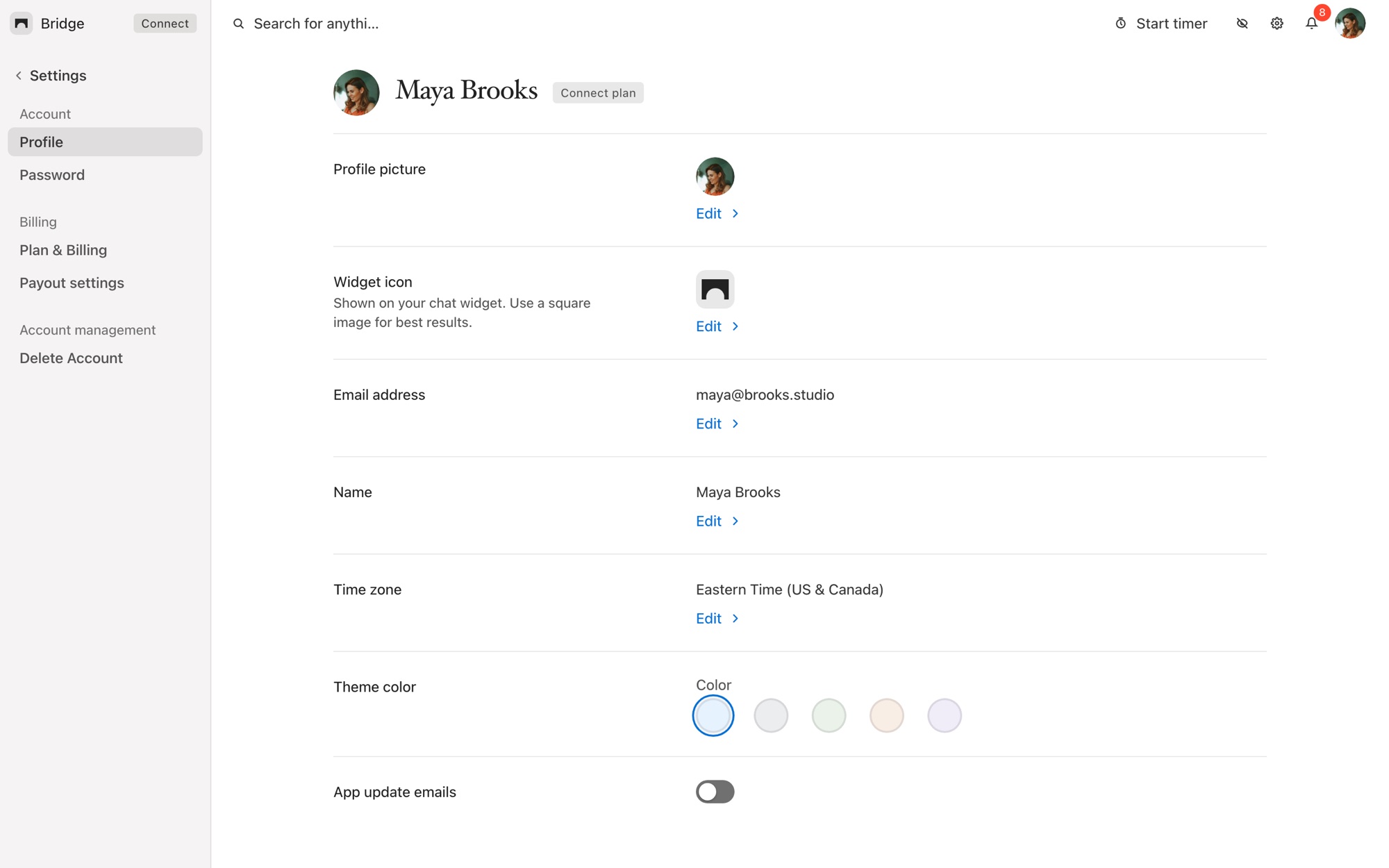
- Upload your own widget icon in Settings → Profile (Connect and Atlas plans)
Tip: Use Stealth mode while editing your Squarespace site so you can edit the site while hiding the widget. You can enable Stealth mode through the Settings tab in the widget interface in your Squarespace editor.

