
Dashboard overview
The Squarepaste dashboard is your central hub for managing your client projects, tasks and conversations. This guide will help you understand the main areas and features of the dashboard.
Home
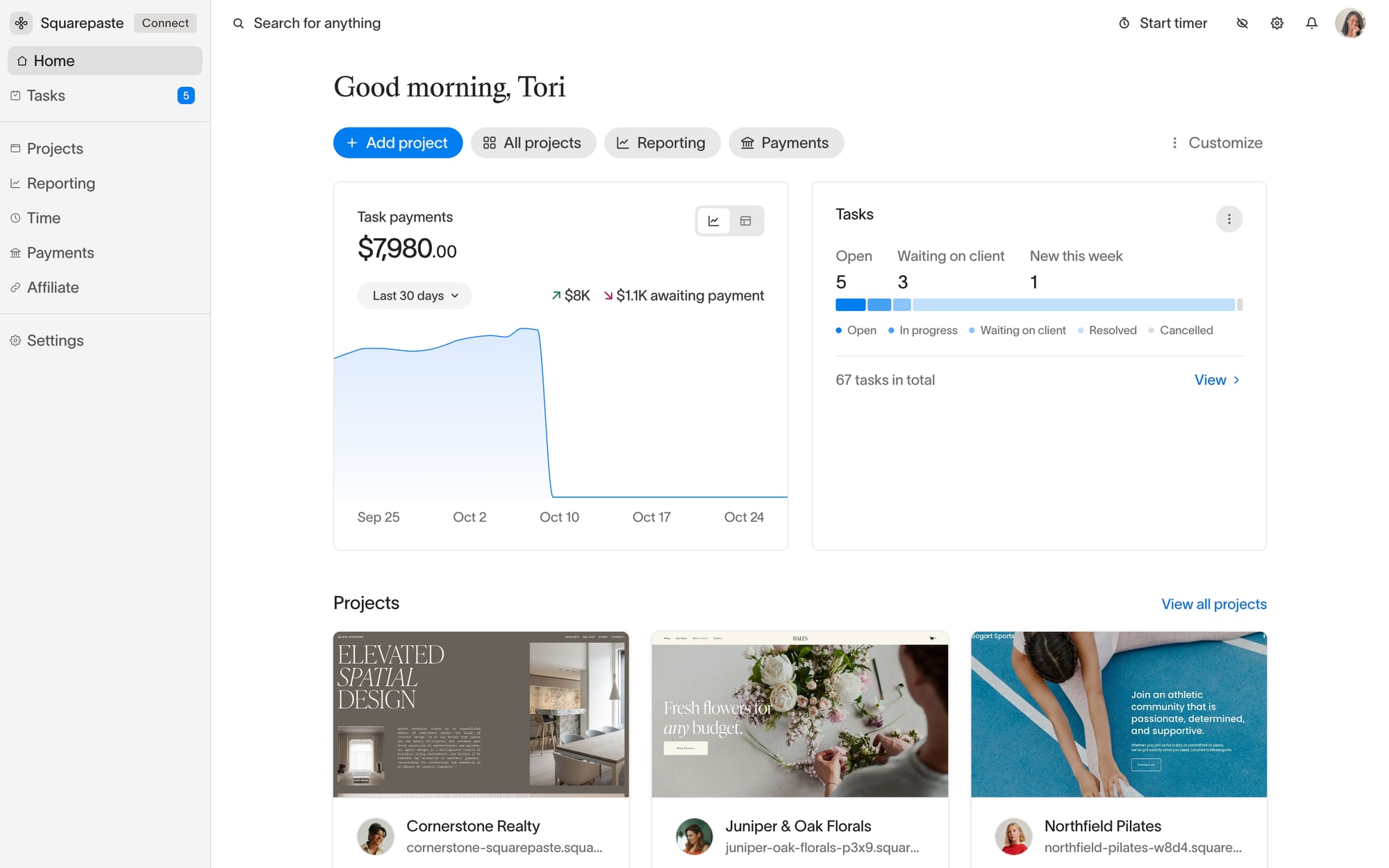
When you log in, you'll land on Home, which shows:
- Task payments: A chart of what your tasks have earned
- Tasks: Your open tasks across every project
- Projects: Your client projects, with a link to view them all
- Money movement: Your payments and recent transactions
- Add project: A button to add a new client site
The sidebar takes you to Home, Tasks, Projects, Reporting, Time, Payments (Hourly and Fixed), Affiliate (Overview, Assets, Payouts and Settings), and Settings. Affiliate is where the affiliate program lives.
Project Pages
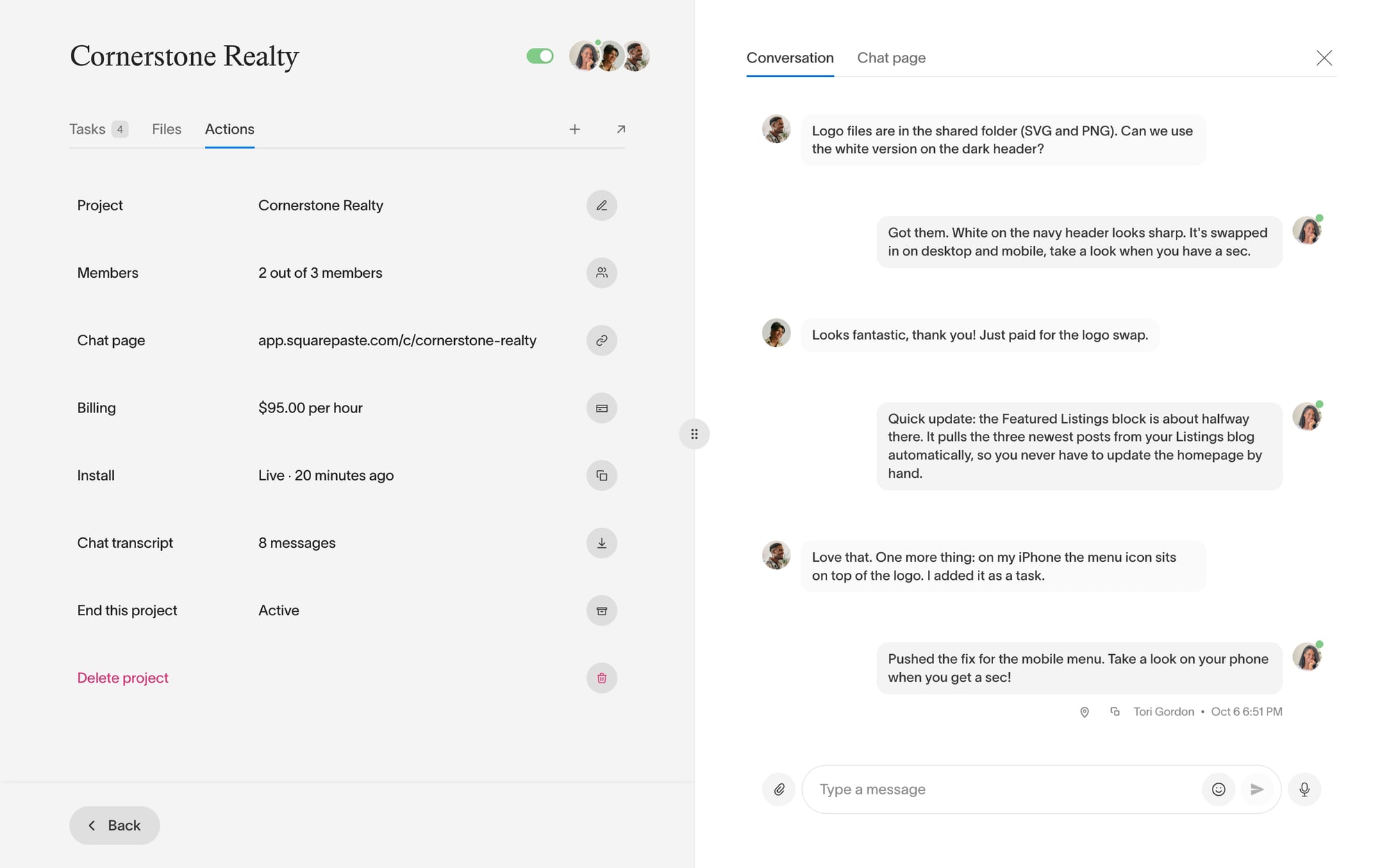
Each project has its own page. The chat sits on the right, with a Conversation view and a Chat page view. On the left are three tabs:
- Tasks: Every task for this project
- Files: Files shared in this project
- Actions: Project (name, domain, screenshot, email alerts and widget color), Members, Chat page, Billing, Install (your Squarepaste Code), Chat transcript, End this project, and Delete project
The switch next to the project name sets you online or offline. Stealth mode is in the Settings tab of the widget itself, inside your Squarespace editor.
Conversations
Each project has one conversation where you'll talk with your client:
- Message Thread: View the full conversation history with your client
- File Sharing: Send and receive files through the chat interface
- Members: Invite up to 3 people by email, and edit their name and photo, from Actions → Members
- Online/Offline Switch: Show clients whether you're available, using the switch next to the project name
Settings
Open Settings to:
- Update your profile and widget icon (Profile)
- Change your password (Password)
- Manage your plan, subscription and billing (Plan and Billing)
- Set up how you get paid for tasks (Payout settings)
- Delete your account (Delete Account)
Emails about new messages are set per project, with the Email alerts menu in Actions → Project → Notifications: Every message, Daily summary or Off.
Navigation Tips
- Click any project under Projects to open it
- Use the switch next to the project name to control your availability
- The widget's own Settings tab holds your name and photo, email notifications, stealth mode, time zone and sign out
- Check the Tasks page for work waiting on you across all projects
Tip: Use the online/offline switch to show if you're online. You'll still receive messages, but clients will know if you're available or not.

