
Add your first project
Once you've created your Squarepaste account, the next step is to add your first client site. In Squarepaste, each client site is a project. Adding one takes two steps: tell Squarepaste about the site, then paste the Squarepaste Code into the site's Header Code Injection.
Method 1: Connect with Squarespace (Recommended)
Connecting lets you choose the site from your Squarespace account and brings in its name and domain for you.
- Log in to your Squarepaste dashboard
- Click "Add project" on Home or on Projects
- Click the "Connect Squarespace Site" button
- You'll be redirected to Squarespace to authorize Squarepaste
- Select the Squarespace site you want to connect
- Grant Squarepaste the necessary permissions
- You'll come back to Squarepaste on the Install step, with your project created from the site's name and domain
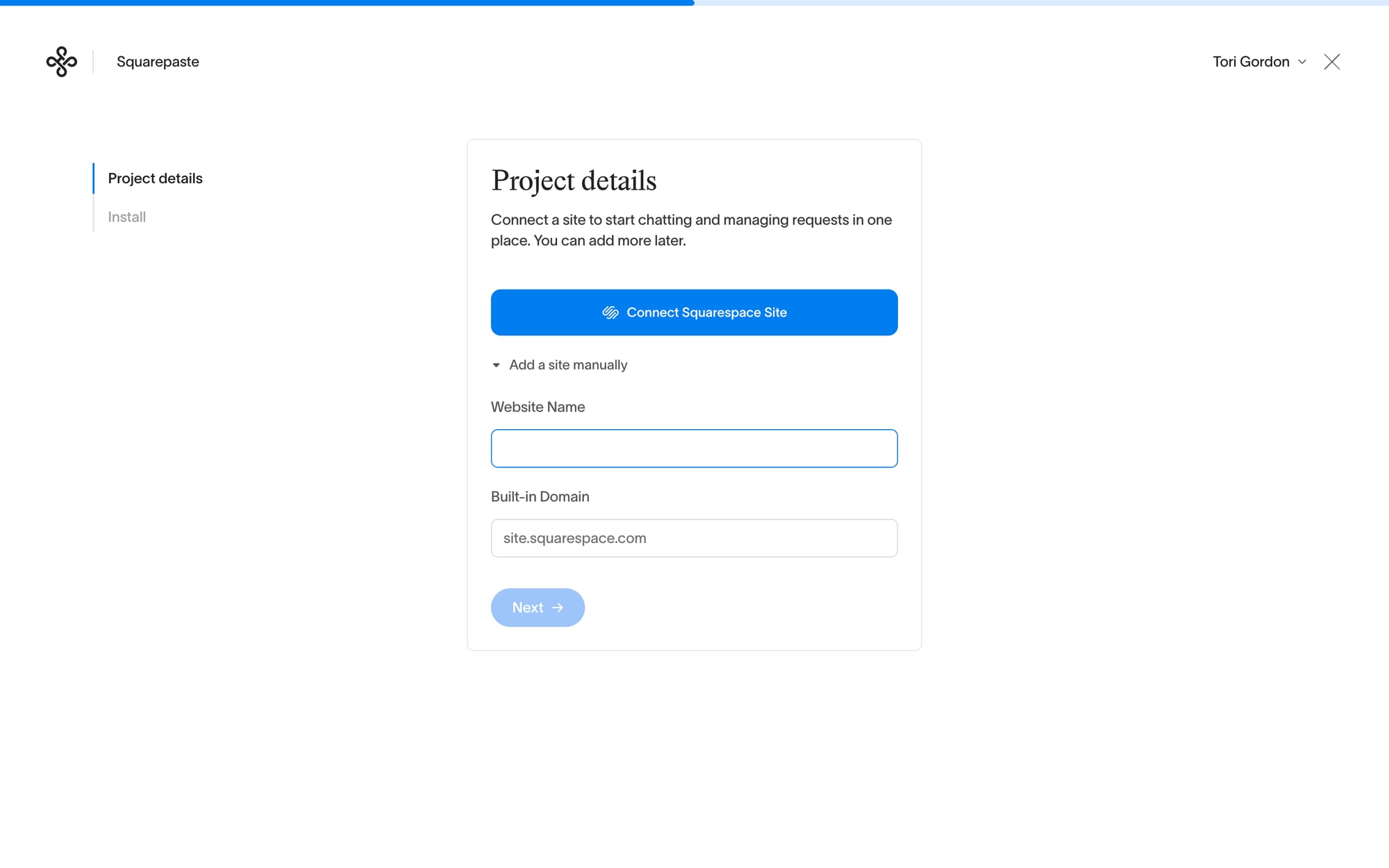
Method 2: Add a site manually
You can also add a Squarespace site by typing in its details yourself. This is the way to go when your client owns the Squarespace account.
- Log in to your Squarepaste dashboard
- Click "Add project" on Home or on Projects
- Click "Add a site manually"
- Enter a Website Name (e.g., "Client Name - Portfolio Site")
- Enter the site's Built-in Domain (e.g., "yoursite.squarespace.com")
- Click "Next" to create the project and go to the Install step
Install the Squarepaste Code
Either way, you finish on the Install step. Nothing shows on the site until this code is in place.
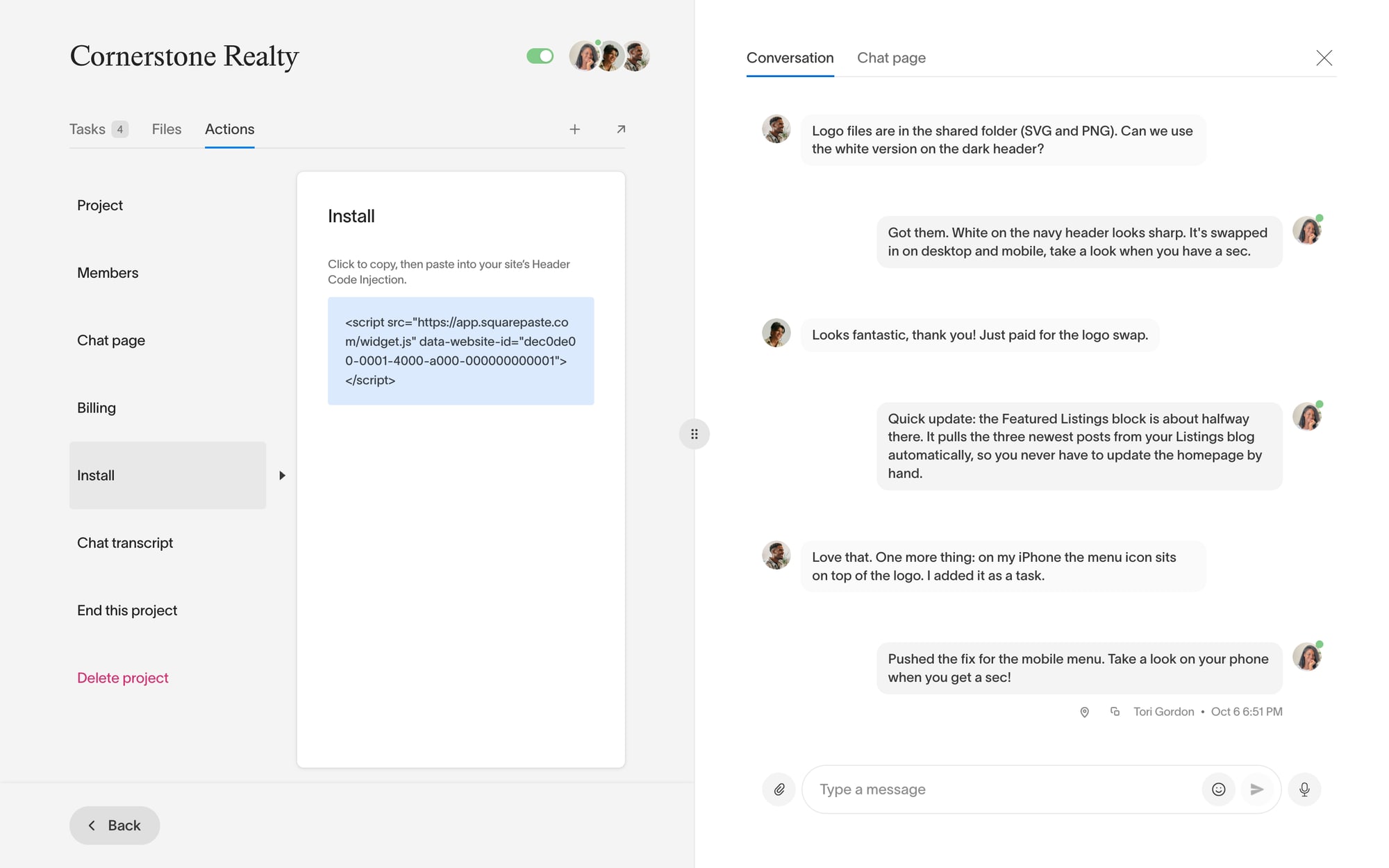
- Click the code to copy it
- Click "Open Code Injection on your site." That opens Website → Pages → Website Tools → Code Injection in Squarespace
- Paste the code into the Header box and save
- Click "Done" in Squarepaste
You can find the code again any time on the project's Actions tab, under Install.
Plan Limits
Keep in mind that your plan determines how many Squarespace websites you can add:
- Link Plan: Up to 5 Squarespace websites
- Connect Plan: Up to 25 Squarespace websites
- Atlas Plan: Unlimited Squarespace websites
If you've reached your plan's limit, you'll need to upgrade to add more Squarespace sites.
What's Next?
After adding your project:
- Invite your client from the project's Actions tab → Members (up to 3 people)
- Set the widget color in the project's Actions tab → Project
- Open the site in the Squarespace editor to see the Squarepaste widget. It only appears there, never on the live site
Tip: Connecting lets you pick your site from your Squarespace account and brings in its name and domain for you. Squarespace doesn't let other apps edit a site's Header Code Injection, so the one step left is pasting in your Squarepaste Code. It takes about a minute.

