
Send your first message
Once your project is set up and your client is a member, you can message them from the project page in your dashboard or from the widget in your Squarespace editor. Your client replies from the widget in their own Squarespace editor or from their chat page.
Invite Your Client
Your client needs to be a member of the project before they can reply:
- Open the project and go to the Actions tab
- Click Members, then "Add member"
- Enter their first name (last name is optional) and email address, then click "Send invite"
- They'll get an email with an access link. The link works once and expires after 1 hour, and the email also has a code they can enter instead (the code expires in 10 minutes)
You can invite up to 3 people per project.
Starting a Conversation from Your Dashboard
To send your first message to a client from your Squarepaste dashboard:
- Log in to your Squarepaste dashboard
- Open the project from Projects
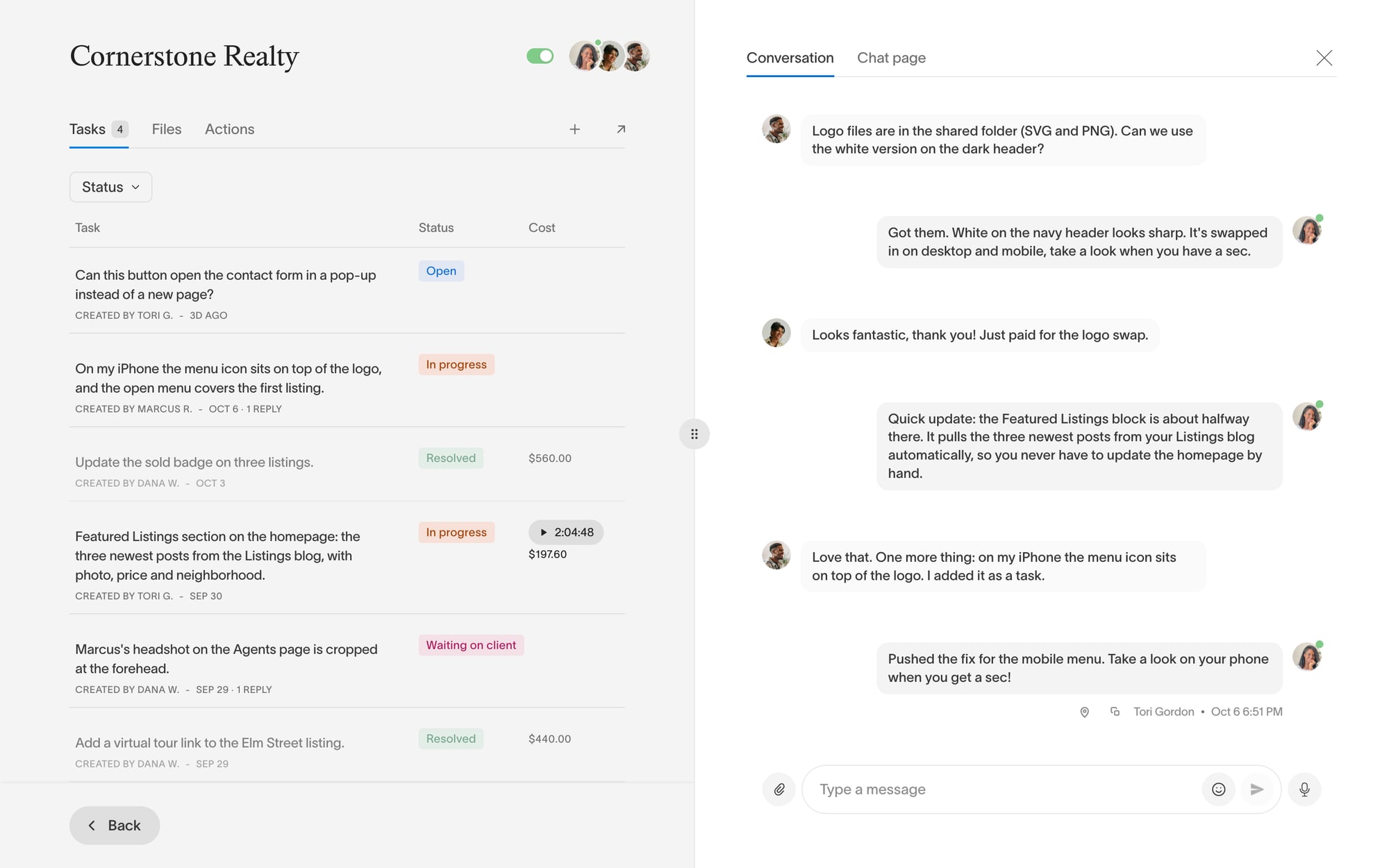
- You'll see the conversation on the right of the project page
- Type your message in the message input field
- Click "Send" or press Enter
- Your message appears right away in the widget and on your client's chat page
Starting a Conversation from Squarespace
You can also send messages from the widget inside your Squarespace editor:
- Log in to Squarespace and open the site in the editor
- Click the Squarepaste widget in the bottom-right corner to open it
- Type your message and send it
- Your message will appear in both the widget and your Squarepaste dashboard
The widget only appears inside the Squarespace editor on the site's built-in squarespace.com address. It never shows on the live site or a custom domain.
Client Responses
Your client can reply in one of two places:
- Their Squarespace editor: If they have access to the Squarespace site, they'll see the Squarepaste widget while editing it
- Their chat page: Every project has a chat page at app.squarepaste.com/c/your-project. You'll find its link in Actions → Chat page
You'll see their messages in your Squarepaste dashboard, and they'll see your replies wherever they're chatting.
Real-Time Messaging
Squarepaste uses real-time messaging, which means:
- Messages appear instantly for both you and your clients
- On the project page and your client's chat page, you can see when the other person is typing
- Conversations update automatically without refreshing the page
- Messages sync in real-time between your dashboard, the widget, and the chat page
File Sharing
You can also share files through Squarepaste:
- Clients can attach files when sending messages
- You can send files to clients from your dashboard
- All shared files are stored securely and accessible in the conversation thread
Tip: Set the project's Email alerts (Actions → Project → Notifications) to get an email when your client writes – for every message or as a daily summary.

